
To be able to use the Typical Manager AutoCAD Electrical Add-In you need use the NETLOAD functionality in AutoCAD.
Do the following actions to load the Add-In:
When doing so the following message is shown. Select
'Load';
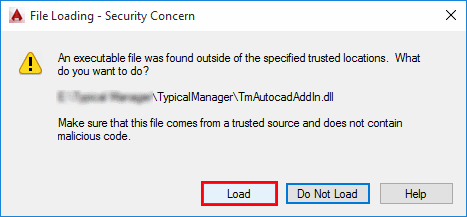
Loading the Typical Manager AutoCAD Add-In can also be done at startup of AutoCAD.
To do so: execute the following command when the Add-In is loaded: 'TM_REGISTER_AUTOLOAD'
To remove the auto load function. Execute the following command when the Add-In is loaded: 'TM_UNREGISTER_AUTOLOAD'
NOTE:
The version of the Typical Manager AutoCAD Add-in that is loaded when de command is executed will be registered for autoload.
 Connect
to a Typical Manager database
Connect
to a Typical Manager databaseLoaded detail view:
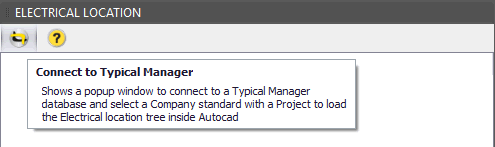
In de detail view (shown above) there is a button 'Connect to Typical Manager'. When pressing this button the following popup is shown:

The popup (above) allows you to connect to a Typical Manger database and select a Company Standard and a Project.
For the selected Project the Electrical Location view is loaded in the detail view.
An Example view when a Project is selected:

 Settings
In AutoCAD it is possible to change the Typical Manager AutoCAD project
settings. This can be done by pressing the symbol.
The following popup is shown:

Typical directory - Directory is used for synchronizing typicals on to AutoCAD drawings;
 Synchronization (Typical Manager to AutoCAD)
The Add-In can synchronize data from Typical Manager to AutoCAD. There are 3 synchronization options:
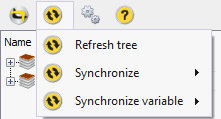
Refreshing the tree will get the latest electrical location tree from the selected project. When items are removed or added inside Typical Manager to the electrical location tree the refresh action will add or remove the items in the AutoCAD electrical location tree.
There are 2 synchronize actions, all and selection.
Synchronize all will synchronize all the templates and typicals from Typical Manager into AutoCAD.
The following actions can take place while synchronizing:
Synchronize selection will do the above but only for the selected electrical location tree items.
Notes:
Synchronize variable only synchronizes variables. This can be done for all variables or just for the selected pages in the electrical location tree;
Typical Manager variable used in 'Attributes', 'Text','Multiline text', 'Dimensions' are synchronized with Typical Manager.
Also some multiple catalog fields can be used with Typical Manager variables:
Multiple catalog fields:
Table
Unit
Manufacturer
Count
Catalog
Assembly
Synchronization
(AutoCAD to Typical Manager)It is also possible to synchronize AutoCAD electrical variable to Typical manager.
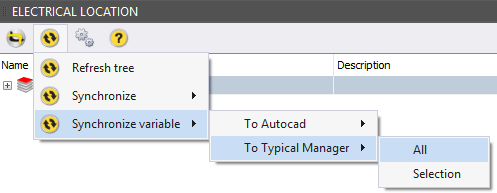
When clicking on 'All' or 'Selection' the Typical Manager Add-In will collect all variable data from the different drawings and compare them to attribute data in Typical Manger
Any changes found will be shown in a status overview.
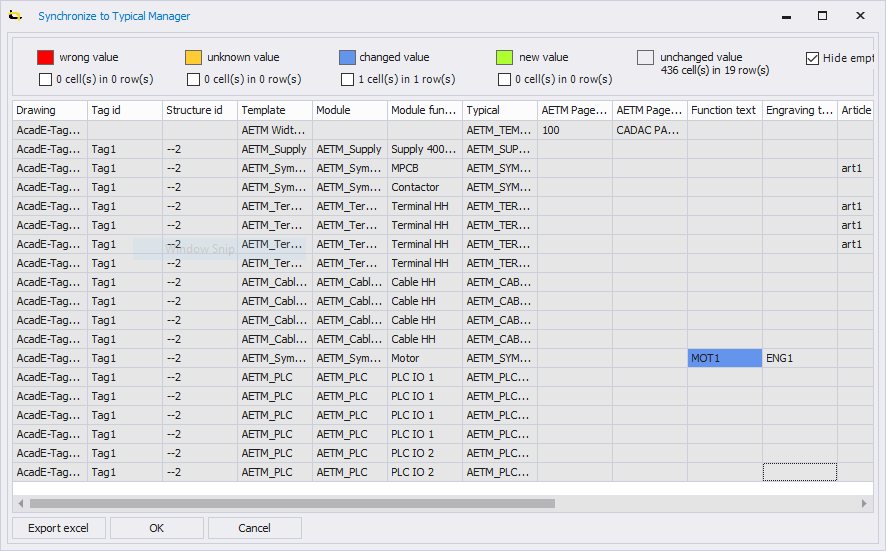
When clicking 'OK' the data will be changed.
NOTE:
Synchronizing data to typical manager will only work when:
The drawing was generated by typical manager
The variable/attribute in AutoCAD can be match to a attribute in typical manager (No take-over attribute or system variable allowed)
The variable/attribute in AutoCAD only contains a single variable, without any additional characters
Variable with '<%MOT_I_Nom>' can be synchronized
Variable with '<%MOT_I_NOM> Max A' can not be synchronized, as it contains additional characters.
Also see: